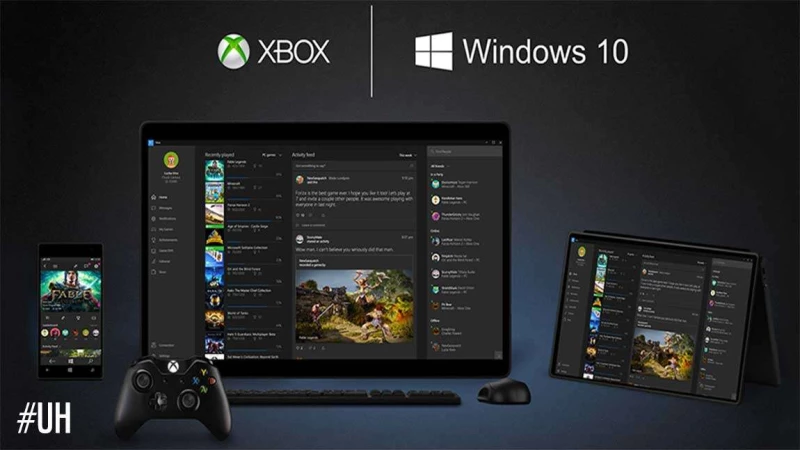
Μόλις λίγες ημέρες έχουν απομείνει για την κυκλοφορία των Windows 10 και έτσι η Microsoft έδωσε στα φώτα της δημοσιότητας νέες λεπτομέρειες για μερικές από τις Xbox λειτουργίες, οι οποίες θα γίνουν διαθέσιμες στα Windows 10.
Μπορείτε να ρίξετε μία ματιά στις νέες λειτουργίες παρακάτω.
Game Streaming from Xbox One
We’re taking the game streaming function on Xbox One, as announced last month, out of preview and expanding it to everyone who owns an Xbox One and has a PC or tablet with Windows 10. This means you can play the great library of games you’ve built for Xbox One on your Windows 10 PCs when you’re not in front of your console. To get started, on your Xbox One console, go to Settings > Preferences > Allow game streaming to other devices and then install the latest version of the Xbox app on your Windows 10 PC or tablet.
In the Xbox app on Windows 10, select Connect > + Add a device from the menu on the left side of the app, then select your Xbox One console. Attach a wired Xbox 360 or Xbox One controller to your Windows 10 PC or tablet. Then, go to Home > Recently Played to select an Xbox One game and then select Play from Console to start your streaming session. Another way to do this is to simply select your Xbox One console under Home > Game Streaming in the Xbox app to take full control of your Xbox One console from your Windows 10 PC. A notification will appear on your Xbox One that a game streaming session was started by a specific user. During game streaming, the Xbox One console will appear “in use” as though the person streaming was in the room.
Xbox App on Windows 10
We’re ramping up more gaming and social features on the Xbox App on Window 10, too, giving you more and better ways to access your gaming world and connect with your friends and the Xbox Live community. New features available in the July release of the Xbox app include:
- Party Chat – Above the Friends list is a new option labeled Start a party (beta). This enables you to start a party chat with your Xbox friends across Xbox One and the Xbox App on Windows 10. Press ‘+’ to invite friends, and simply click on your friends to invite them to an online party.
- My Games – The app will support automated discovery of Windows Store games and a large number of older non-Windows store PC games so they get added automatically to your game collection within the Xbox app upon first launch. If a game is not automatically added, you can manually add it to your collection by selecting My games > Add a game from your PC. The Xbox team will continue to add non-Windows store games to a service-side list, so that automated discovery will improve over time.
- Home – We updated Home to enable easy access to Game streaming and allow quick launch of a game from the Recently played list. Also, there is an updatedFeatured games section on the home screen below your recently played list, which lets you discover and install new and popular games available from the Windows store.
- Profile – You can choose to use your Avatar or gamerpic to be displayed to your Friends. Additionally, you can easily customize your Avatar, change your gamertag, gamerpic, and user color, and update your name sharing settings in one place underCustomize.
- Share with your friends – Coming in the July release, you can upload your local game clips and screenshots for Windows store games to your shared collection on Xbox Live. Go to Game DVR > On this PC > Share to upload your local clips and screenshots and have them appear on your Activity Feed. You can capture game clips and screenshots for non-Windows Store games and access them via Game DVR > On this PC > Open folder.
- Xbox Avatars – We are updating the Avatars app, so you can use the “Take a photo” feature and save a specific Avatar photo as your gamerpic. There are several ideas on Xbox Feedback that inspired this change, but this idea with over 2,100 votes and the various comments from fans drove the team to deliver this as a new feature this month. Time to head to the Avatar photo booth, select a post or a frame of animation, select a background, and select Picture size > gamepic. Then click the camera icon, and select Save as gamerpic to make your new pic visible across Xbox on Windows 10 PCs and Xbox One.
- Day One Experience – For PC owners that are new to the Xbox ecosystem, we are adding a feature to the Xbox app to help you create a new account, get a gamertag, and then land in a basic user experience that helps you get started finding games, earning achievements and using your activity feed.

Must Read
Έρχεται νέο μοντέλο του Nintendo Switch 2 στην Ευρώπη!
Έφτασε το νέο update του PS5 και βελτιώνει την απόδοση και τη σταθερότητα

Τα νέα παιχνίδια του Xbox Game Pass για τον Ιούνιο!